Getting Started on PAMA Community
Make the most of your PAMA Community experience online by taking these steps to allow others to find and connect with you, engage in meaningful conversations about the topics that matter to you, and build your presence in the online community.
Log in:
Your login credentials should be the same as your credentials for pama.ca. When you go to https://community.pama.ca/home click “Sign in”. You can reset your password by clicking on the “Forgot Password” link. If you don’t have an account, click “Create an account.” If you need to update your email address, contact admin@pama.ca.
Profile Set-Up:
Tell us about yourself: Is this what you really look like? Upload a profile picture and add some information to your profile so it is easier to find and connect with like-minded peers.
Profile Settings:
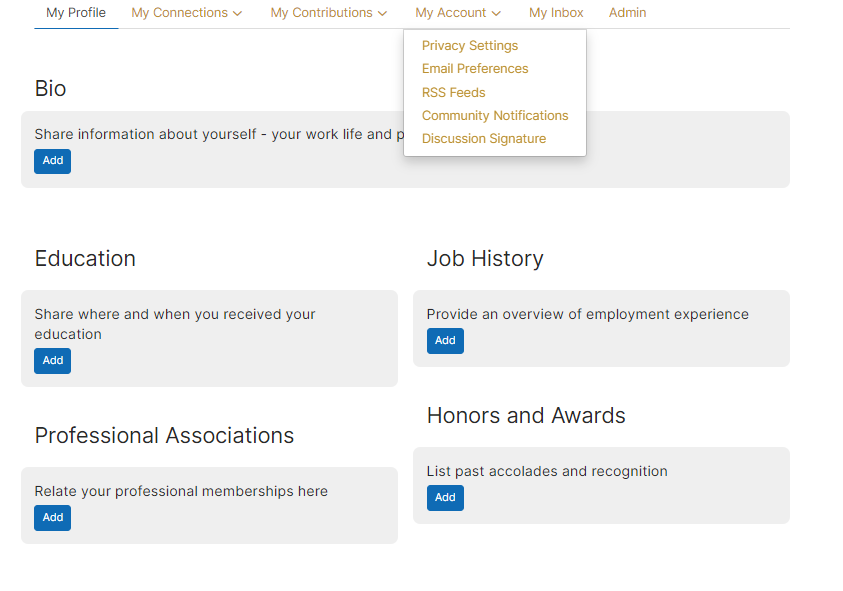
Customize your profile settings: While on your profile page, click on the tab for My Account. Here you can set up how you want to receive emails from the community, how much of your profile you want visible to other members, design the signature area that appears under your discussion posts and more. If you have any questions about what a certain setting means, please email the Community Manager at admin@pama.ca for help.
Email Delivery Options: Your frequency can be in the form of a daily or weekly digest–a single email each day summarizing the hottest topics in your community, or stay informed in real time with instant alerts.
Build your contact list: Select Directory from the top navigation bar to find friends and colleagues belonging to the PAMA Community. Creating a contact list helps identify relationships and build searchable networks.
Join the Conversation
Posting a Message:
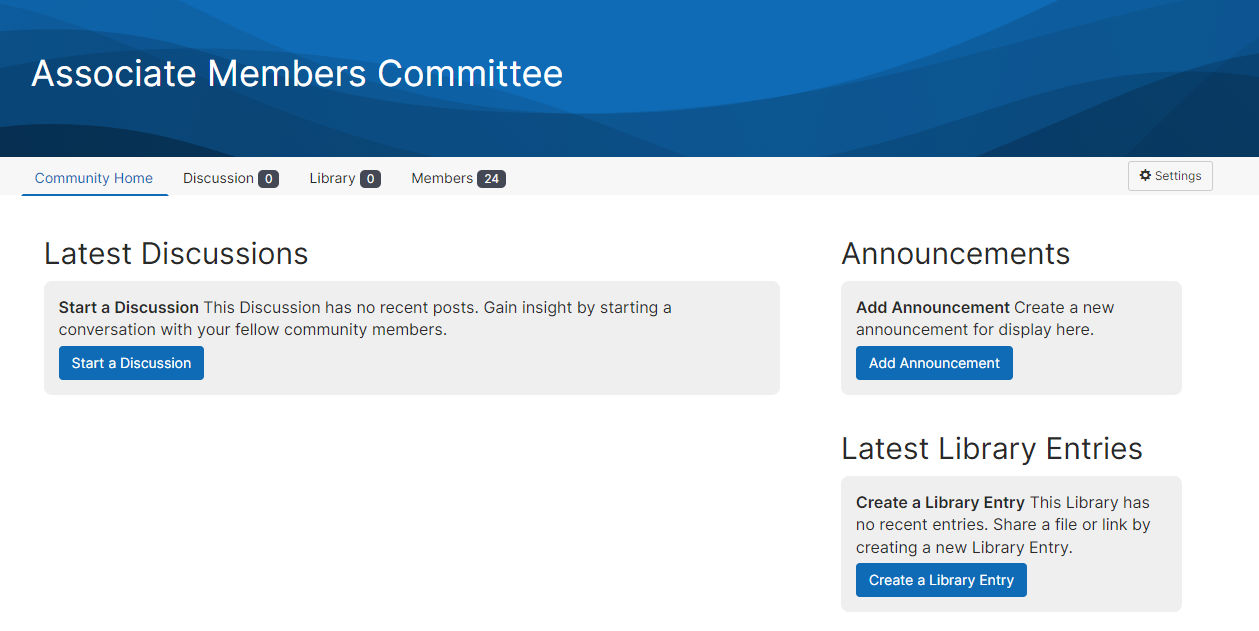
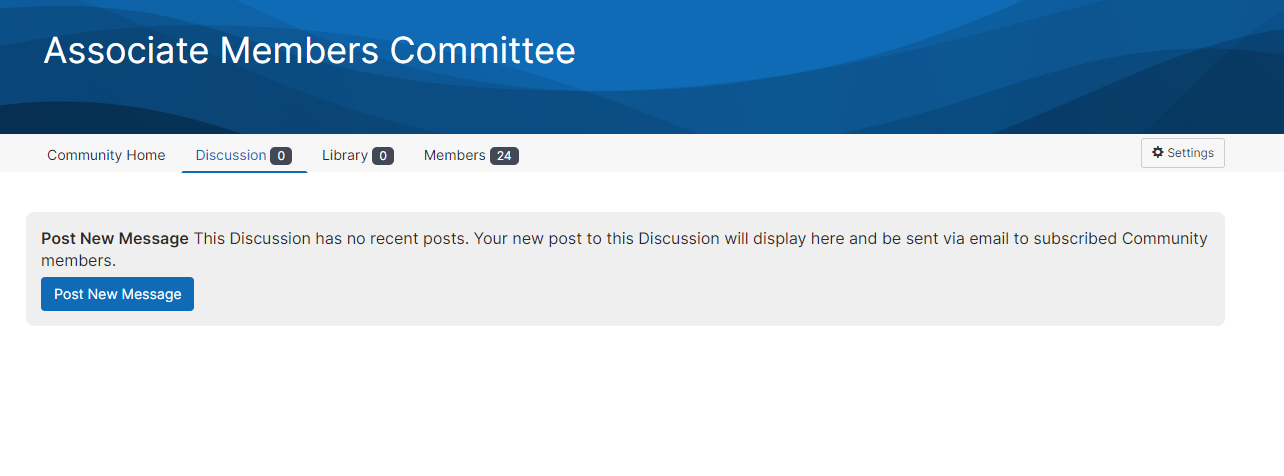
1. Select “Add” next to the Latest Discussions or “Post New Message” if on the Discussions page
Latest Discussions:
Discussion Page:
2. You can upload attachments (attachments will automatically be added to the specified community library).
3. You can @mention specific PAMA members.
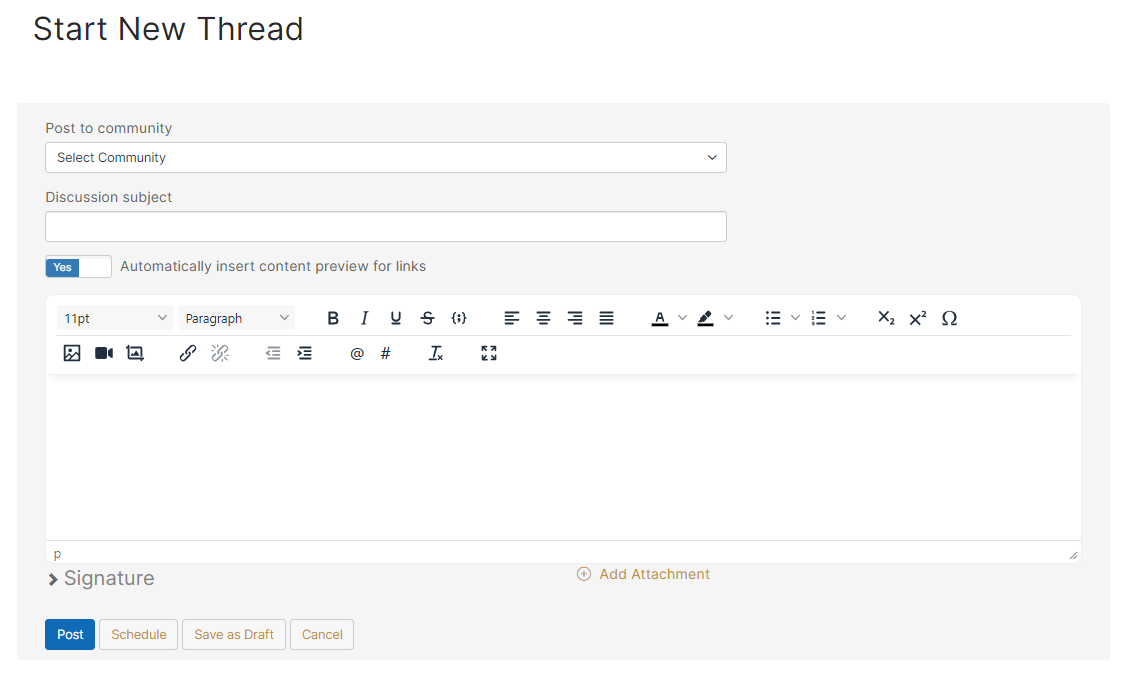
*You can save a draft of the post. The system will also automatically start saving your message once you start adding content. You can schedule a post to go live at a certain time. To access your scheduled posts and drafts, go to Profile > My Contributions tab > List of Contributions.
Reply to a Discussion: